
Concept reviews without the render farm
Develop facade and lighting studies from an existing view. Keep your source close while you judge the options.
RNDRS for Architects
Bring a model screenshot, elevation or hand sketch into Studio. Explore materials and lighting, compare the result with your source, and refine the direction for your next design review.
AI rendering that works from the image you already have — a sketch, a model view, a photo. Ask for the change, keep every version. In the browser, no plugin, no GPU. From $19 a month, or $99 once — credits never expire. 5 free renders. No card. Failed renders are refunded automatically.
Studio is available to everyone. Create an account to get started.
Open Studio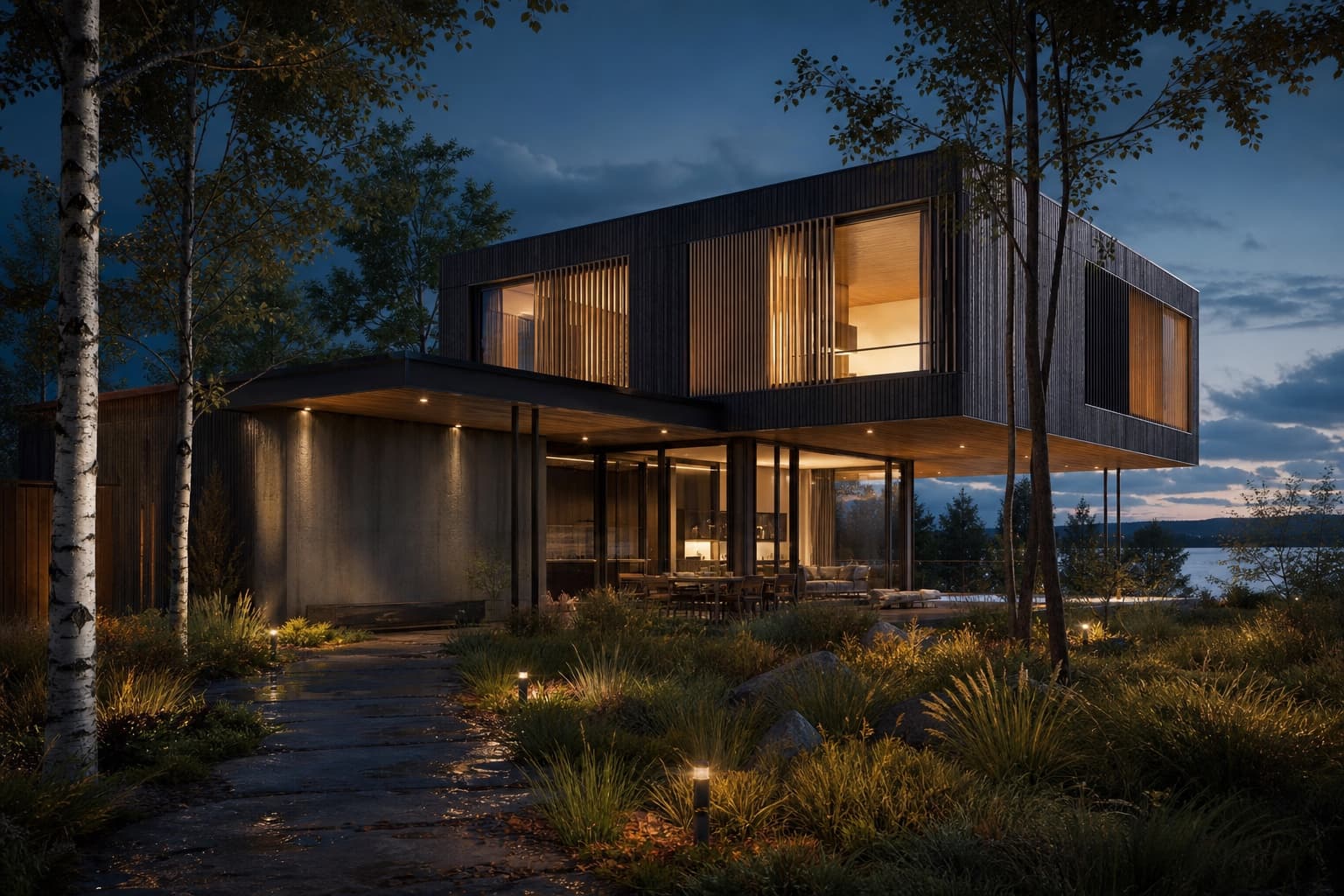
Keep the source, your instruction and the result together. Review each change before continuing.
SketchUp/Rhino screenshot or hand sketch
"Corten and glass, overcast Copenhagen light"
Review the result against your source
Camera push-in for the closing slide
Choose the workflow around the image you need to deliver and the control your project requires.
Develop facade and lighting studies from an existing view. Keep your source close while you judge the options.
Revisit source and result images in Studio. Choose the strongest result as the starting point for the next change.
Upscale a selected image and inspect its detail before placing it on a board. Review the available export options for your presentation.
SketchUp, Rhino and Revit screenshots, massing exports, CAD elevations, hand sketches and site photos. If your software can export an image, RNDRS can render it.
AI can alter massing, openings and proportions. Use a clear source and describe what should stay fixed, then compare the result. Verify dimensions in your original design software.
Check the current plan and terms for commercial-use rights. Inspect the exported dimensions and image details at your intended print size before including a render in a submission.
Processing time varies with the operation and demand. Describe the next change in Studio and review the result before continuing.
Upload something you are working on. Explore a direction in Studio, then refine it against your original.